- A+
Resetting Waste Ink on Canon MP288 Printer
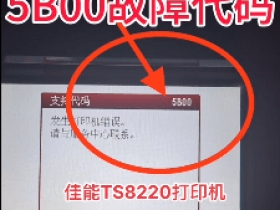
The Canon MP288 is a popular printer among users who require high-quality prints. However, over time, the printer is prone to different issues. One of the common problems with the printer is the Waste Ink Error. This error is caused by an accumulation of waste ink on the printer's absorbent pads, which could hinder the printer's performance. Fortunately, you can resolve this problem and keep your printer working optimally by resetting the waste ink counter. In this article, we’ll discuss how to reset the waste ink counter on the Canon MP288 printer.
What is the Waste Ink Counter?
Before we go into the details of resetting the waste ink counter, it’s crucial to understand what it is and how it functions. The waste ink counter is a feature installed in modern printers to help track the amount of ink used by the printer. It works by counting the number of times the printer cleans its print heads and performs other maintenance procedures. This helps to ensure that the printer continues to produce high-quality prints. However, when the waste ink counter is full, it can cause the printer to stop functioning, displaying a Waste Ink Error on the screen.
Resetting the Waste Ink Counter on Canon MP288 Printer
The process of resetting the waste ink counter on the Canon MP288 printer is relatively easy and can be done in a few simple steps. Here’s how:
Step 1: Enter Service Mode
The first step is to access the printer’s service mode. To do this, follow these simple steps:
Turn off the printer and unplug the power cable from the outlet.
Hold down the Stop button and then press and hold the Power button.
Hold the two buttons simultaneously for a few seconds until the printer display comes on.
Release the Power button while still holding the Stop button.
Press the Power button again while holding the Stop button down for approximately 5 seconds.
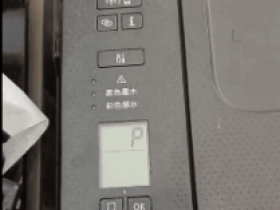
The printer will enter Service Mode, and the screen will display a reset message. Release the Stop button.
Step 2: Reset Waste Ink Counter
The second step is to reset the waste ink counter using the following procedure:
Press the Stop button five times.
Press the Power button once, and the printer will print a test sheet.
Turn the printer off and on again. The waste ink counter on your printer should now be reset, and the error message cleared.
In Conclusion
If you’re experiencing Waste Ink Error with your Canon MP288 printer, the simple solution is to reset the waste ink counter. This will clear the error message and help keep your printer functioning correctly. However, it’s essential to note that the waste ink error is an indication that the printer’s absorbent pads need cleaning or replacement. Therefore, it would help if you considered having them cleaned or replaced to avoid similar issues in the future.